Git Branching

Git branching strategy (or version control branching strategy) is the model used so that your codebase evolves in a logical, consistent, and mostly “easy to understand” way.
Each repository has one default branch and can have multiple other branches. You can merge a branch into another branch using a pull request.
Branches allow you to develop features, fix bugs, or safely experiment with new ideas in a contained area of your repository.
Git Revert and Reset
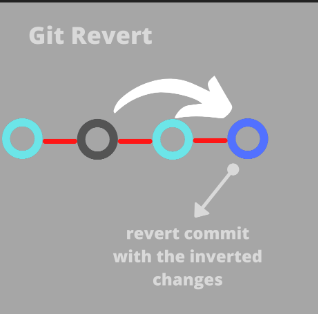
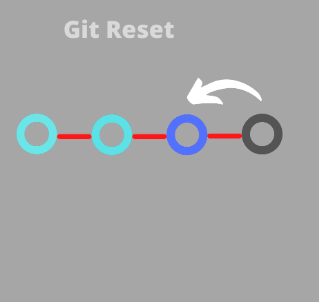
The Git Revert command lets us revert changes from a previous commit or commits and create a new commit whereas the Git Reset command allows us to RESET our current head to a specified state. we can reset the state of specific files as well as an entire branch.
Git Revert -
Do not Alter history
safe way to undo but generate more commit
for undo shared/public commits
Git Reset -
Alter History
unsafe way to undo shared/public commit
cleaner history
for undo private(non public) commits
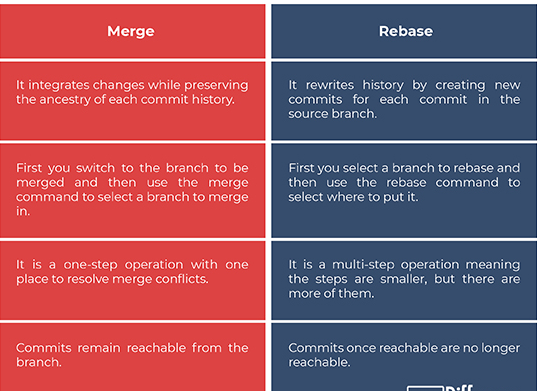
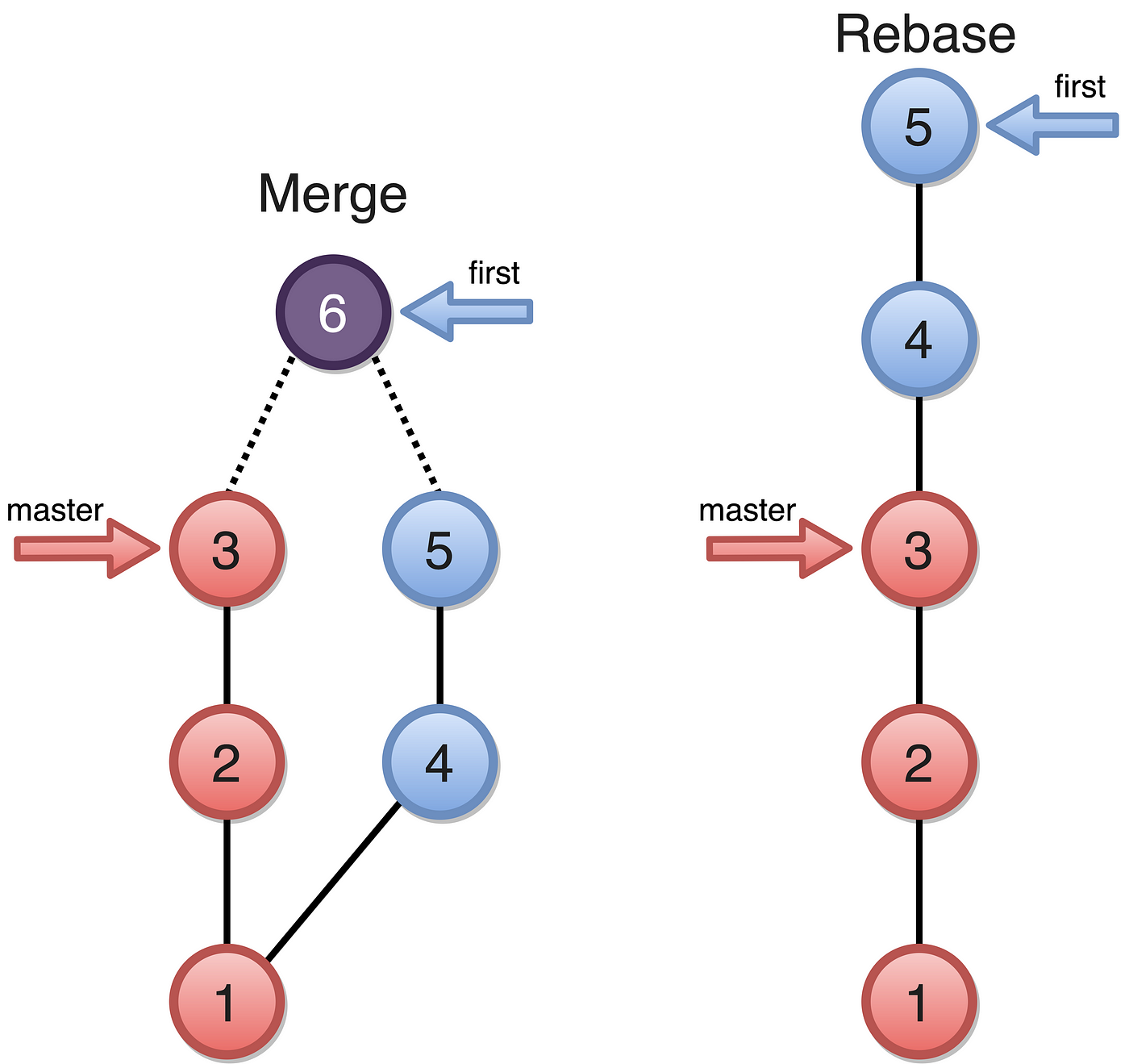
Git Rebase and Merge
Task 1:
Add a text file called version01.txt inside the Devops/Git/ with “This is first feature of our application” written inside. This should be in a branch coming from master, [hint try git checkout -b dev], switch to dev branch ( Make sure your commit message will reflect as "Added new feature"). [Hint use your knowledge of creating branches and Git commit command]
version01.txt should reflect at local repo first followed by Remote repo for review. [Hint use your knowledge of Git push and git pull commands here

Add a new commit in
devbranch after adding the below-mentioned content in Devops/Git/version01.txt: While writing the file make sure you write these lines1st line>> This is the bug fix in development branch
Commit this with message “ Added feature2 in development branch”
2nd line>> This is gadbad code
Commit this with message “ Added feature3 in development branch
3rd line>> This feature will gadbad everything from now.
Commit with message “ Added feature4 in development branch
-\>> Make sure you are in Main Branch, Create a branch name Dev
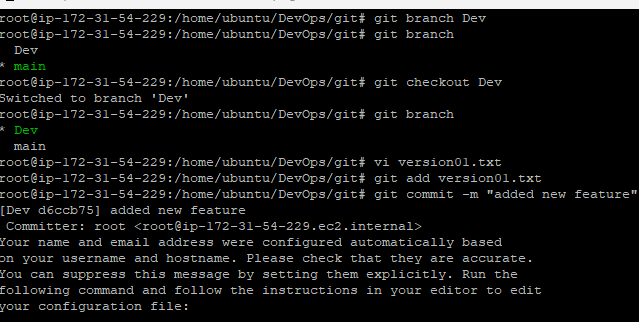
->> Create a file name version01.txt & add content to it “This is the first feature of our application”.

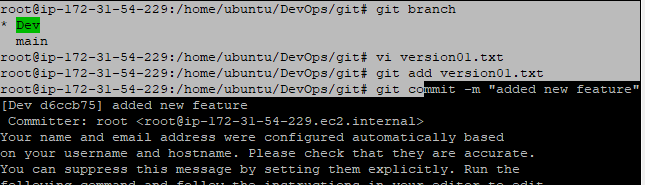
->> Now add it and commit it with the message "Added new feature"
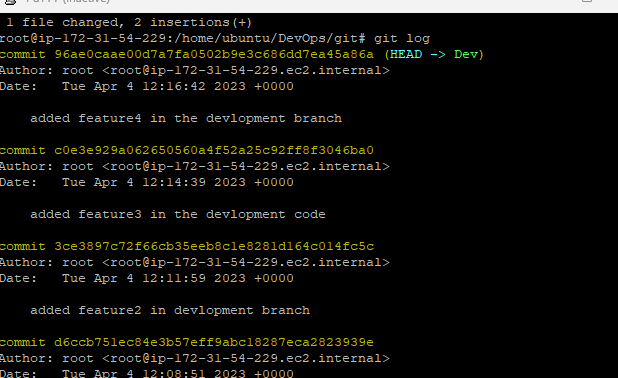
->> we use git log to see every commit
Task 2:
Demonstrate the concept of branches with 2 or more branches with a screenshot.
below we have created two more branch Dev_1 and Dev_2 with the help of command git branch <name>
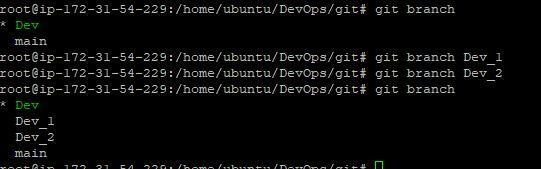
now we switch to Dev_2 branch with the help of the command
git checkout <brach_name>
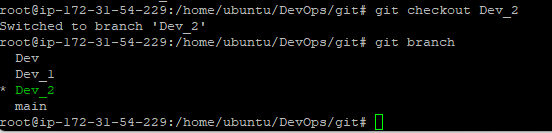
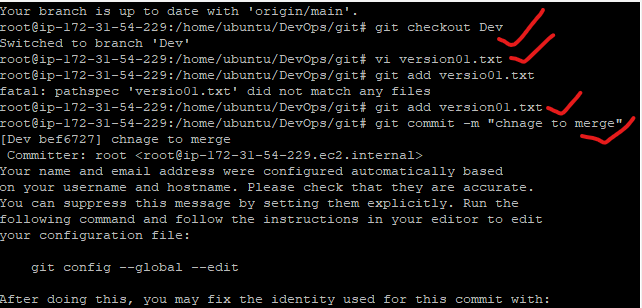
Let's see the content we have in the Master/main branch and then add some content in a file in Dev-Branch and try to merge it with the Main/Master branch

As we can see in the above image there is no file in the main branch because we have created a file version01.txt in the Dev branch. now we add some content in the Dev branch and merge this to the main branch.
Now try to merge it into Main Branch and verify it with the below command to see the Version01.txt file.
git merge <branch_name>
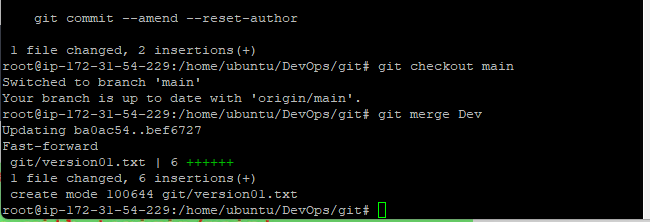
Now verify it with the command 'ls' to see the same content of Dev-Branch in the main branch:
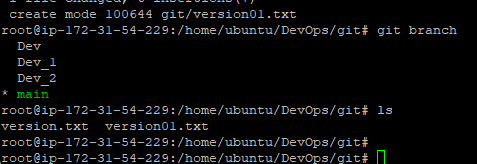
Now we can see in the above image version01.txt file is available in the main branch
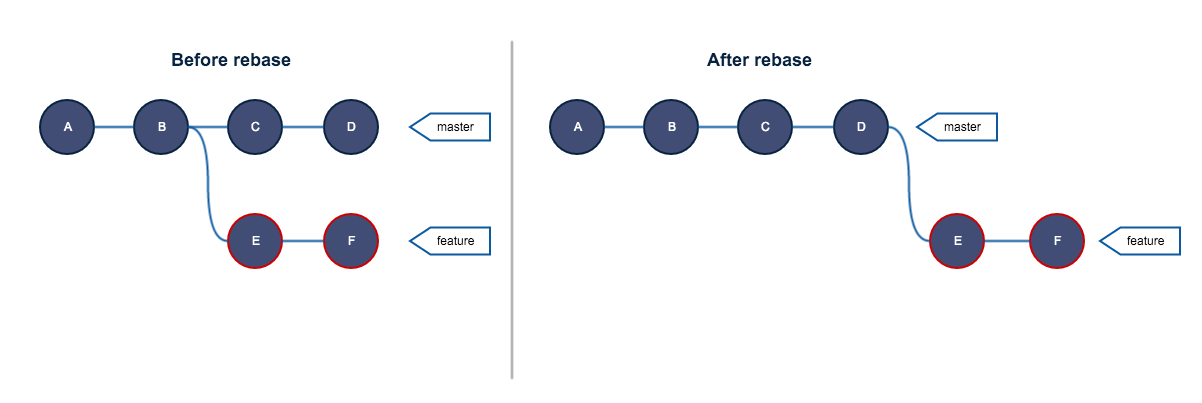
Git Rebase:
Git rebase command is a Git command that moves a branch to a new location at the head of another branch. It allows us to integrate changes from one branch into another and to easily change a series of commits, modifying the history of our repository.